You can configure your Kanzi application:
kzApplicationConfigure() function by setting the KzaApplicationProperties. See KzaApplicationProperties.While you can configure your Kanzi application in kzApplicationConfigure() with KzaApplicationProperties, in application.cfg you can configure some parameters without recompiling your application or even without a C application. The configuration you specify in application.cfg overrides the configuration you specify in kzApplicationConfigure().
For example, in application.cfg you can tell your Kanzi application which kzb binary to load, enable performance information in your application, and set how many threads you want to use for loading the application resources.
To configure your Kanzi application using application.cfg, create an application.cfg file that contains the parameter names and their values in:
When you launch your Kanzi application, the application uses the parameters in the application.cfg to configure your application.
| Setting | Description |
|---|---|
ApplicationMemoryManagerSize
ApplicationMemoryPoolCount
|
Memory reserved for the application |
BinaryName
|
Kzb binary the application loads |
DefaultDisplayIndex
|
Default display when running the application in full-screen mode |
FPSInfoEnabled
|
Display of performance information for the application |
GlyphCacheHeight
GlyphCacheWidth
|
Size of the glyph cache texture |
LoadingThreadCount
LoadingThreadMemoryManagerSize
|
Loading preferences for the application |
MaxPendingResources
|
Maximum number of resources processed by the loading threads |
LogVisualizationEnabled
|
Display of the log window for the application |
MaximumFPS
|
Maximum FPS |
SurfaceBitsStencil
SurfaceBitsDepthBuffer
SurfaceBitsRed
SurfaceBitsGreen
SurfaceBitsBlue
SurfaceBitsAlpha
SurfaceSamplesAntialiasing
|
Surface properties |
UseMemoryMappedLoading
|
Memory mapped loading |
UseShaderCaching
ShaderCacheDirectory
|
Storing compiled shader binaries |
WindowStyle
|
Window style of the application |
WindowX
WindowY
WindowWidth
WindowHeight
|
Position and size of the application window |
You can enable the display of Performance HUD that shows the performance information for your Kanzi application. Use Kanzi's Performance HUD to see how your application performs on target devices and to find bottlenecks and areas for improvement.
Performance HUD shows the overall performance statistics including:glDrawElements and glDrawArrays).kzcRendererGetBatchCount.kzcRendererGetTriangleCount.kzcRendererGetTextureSwitchCount.kzcRendererGetFrameBufferSwitchCount.kzcRendererGetShaderSwitchCount.kzcRendererGetUniformSendCount.kzcRendererGetBufferSwitchCount.Buffer/texture data updates determines how many times new vertex buffer or texture data was uploaded to GPU.
You can access the number in the API by calling kzcRendererGetHeavyweightCallCount.
See Best practices.
| In application.cfg | FPSInfoEnabled = value | ||||
In kzApplicationConfigure() | configuration->fpsInfoEnabled = value; | ||||
| Values |
| ||||
| application.cfg example | # Enables the Performance HUD in Kanzi application.FPSInfoEnabled = 1 | ||||
kzApplicationConfigure() example | // Enables the Performance HUD in Kanzi application. |
You can enable the printing of the application log messages to the application window.
To display the performance information of your application, see Display of performance information for the application.
| In application.cfg | LogVisualizationEnabled = value | ||||
In kzApplicationConfigure() | configuration->logVisualizationEnabled = value; | ||||
| Values |
| ||||
| application.cfg example | # Enables the display of the application log in the application window.LogVisualizationEnabled = 1 | ||||
kzApplicationConfigure() example | // Enables the display of the application log in the application window. |
When you use a Text Block or a Text Layer Kanzi creates a glyph cache texture for every font and font size combination. You can set the height and width of glyph cache textures to adjust the size of the glyph cache texture either when it gets full, or to optimize the performance of your Kanzi application.
Because larger glyph cache textures use more VRAM, try different sizes before you set the final size . The upper limit of the glyph cache texture size depends on the GPU, but usually it is 2048 by 2048 pixels. The default size of the glyph cache texture is 512 by 512 pixels.
Kanzi applies the size of the glyph cache texture to all glyph cache textures.
| In application.cfg | GlyphCacheHeight = size | ||
In kzApplicationConfigure() | configuration->glyphCacheHeight = size; | ||
| Values |
| ||
| application.cfg example | # Sets the glyph cache texture height to 768, and width to 1024 pixels.GlyphCacheHeight = 768 | ||
kzApplicationConfigure() example | // |
The amount of memory needed by an application is often slightly larger than the size of the Kanzi Studio binary loaded, but depending on the application, can also be higher. If the amount of memory you reserve is not large enough, the application does not start and produces an out-of-memory-error instead. It is a good practice to find a value that is slightly larger than needed for not impairing performance while preserving the system memory. Note that increasing the reserved memory can result in a higher frame rate.
When implementing the application framework, you have to pass the amount of memory that your application reserves in the system memory. The total allocated memory for the pooled memory manager in bytes is memoryPoolCount * memoryPoolSize.
When you disable the pooled memory manager, Kanzi application uses the system memory manager. See Using memory managers.
| In application.cfg | ApplicationMemoryManagerSize = size | ||||
In kzApplicationConfigure() | configuration->memoryPoolSize = size; | ||||
| Values |
| ||||
| application.cfg example |
| ||||
kzApplicationConfigure() example |
|
When users run your Kanzi application in an environment with a multi-core processor, Kanzi automatically uses multiple CPU cores to load from kzb files to RAM all the GPU resource data in your application. See Loading resources in parallel.
GPU resources Kanzi loads in parallel include all types of textures, shaders, and meshes. To deploy these resources from RAM to GPU memory and to load prefab templates, Kanzi always uses the main thread. See Images and textures best practices, Shaders best practices, Meshes best practices.
| In application.cfg | LoadingThreadCount = threads | ||||
In kzApplicationConfigure() | configuration->loadingThreadCount = threads; | ||||
| Values |
| ||||
| application.cfg example |
| ||||
kzApplicationConfigure() example |
|
You can set the maximum number of resources that the loading threads process at the same time. By increasing the number of resources you can speed up the loading, but at the same time you increase the peak memory use during loading because you can load more resources to the memory before they are deployed to the GPU.
| In application.cfg | MaxPendingResources = resources | ||
In kzApplicationConfigure() | configuration->maxPendingResources = resources; | ||
| Values |
| ||
| application.cfg example | # Sets the maximum number of resources processed by the loading# threads to the number of loading threads + 1. This is the default value.MaxPendingResources = 0# Sets the maximum number of resources processed by the loading# threads to 20 resources.MaxPendingResources = 20 | ||
kzApplicationConfigure() example | // Sets the maximum number of resources processed by the loading// threads to the number of loading threads + 1. This is the default value.configuration->maxPendingResources = 0;// Sets the maximum number of resources processed by the loading// threads to 20 resources.configuration->maxPendingResources = 20; |
Surface properties control the properties of the hardware accelerated graphics surface on which Kanzi renders. They control the relation between image quality and rendering speed. The surface properties you set are considered requests to be matched by the graphics system of the target hardware. Whether a given request is considered an upper bound, a lower bound, or an exact value is platform dependent.
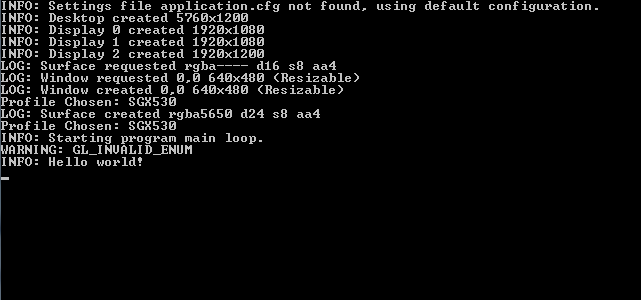
When you start a Kanzi application with C application, the Kanzi debug console shows the values of the surface properties for the requested and created surface.
The default values of surface properties are platform dependent. You can get them by calling kzsSurfaceGetDefaultProperties().
| In application.cfg |
| ||||||||||||||
In kzApplicationConfigure() | configuration->surfaceProperties.bitsStencil = stencil; | ||||||||||||||
| Values |
| ||||||||||||||
| application.cfg example |
| ||||||||||||||
kzApplicationConfigure() example |
|
When you run your Kanzi application in full-screen mode on a system with more than one display, you can set the default display where your Kanzi application window appears.
Note that in order to use the default application display, you have to set the window style of your Kanzi application to full-screen. See Window style of the application and KzsWindowProperties.
| In application.cfg | DefaultDisplayIndex = index | ||
In kzApplicationConfigure() | configuration->defaultDisplayIndex = index; | ||
| Value |
| ||
| application.cfg example | # Sets the second display as the default display for the full-screen Kanzi application window.DefaultDisplayIndex = 1 | ||
kzApplicationConfigure() example | // Sets the second display as the default display for the full-screen Kanzi application window. |
You can set the position of the Kanzi application window on the screen relative to the top-left corner of the screen, the z order of the application window, and the size of the application window in pixels. The default size of the window is 640x480 pixels.
To change the style of the window, see Window style of the application.
| In application.cfg | WindowX = positionX | ||||||||||
In kzApplicationConfigure() | configuration->windowProperties.x = positionX; | ||||||||||
| Value |
| ||||||||||
| application.cfg example |
| ||||||||||
kzApplicationConfigure() example | |
When running your Kanzi application on an operating system that supports memory mapping of files, you can enable memory mapped loading for the kzb files your Kanzi application uses. When you enable memory mapped loading you can reduce the loading times of your Kanzi application because it reduces the amount of file accesses.
Memory mapping of files is supported, for example, on Windows, Linux, and QNX operating systems, but Android does not support memory mapping of files. Before enabling memory mapped loading, check that it is supported on the platform running your Kanzi application.
To check whether memory mapped loading is supported on your platform, call the kzsMemoryMappedFileIsSupported() function. The function returns True if memory mapped loading is supported, and False if it is not supported.
If you enable memory mapped loading on a platform that does not support this feature, Kanzi shows a warning and uses regular file access for loading the kzb files.
| In application.cfg | UseMemoryMappedLoading = value | ||||
In kzApplicationConfigure() | configuration->useMemoryMappedLoading = value; | ||||
| Values |
| ||||
| application.cfg example | # Enables the memory mapped loading for the kzb files.UseMemoryMappedLoading = 1 | ||||
kzApplicationConfigure() example | // |
Every time you run your Kanzi application, the target device compiles the shader binaries. You can configure your application to compile and store the shader binaries on the device when you run your application for the first time. Doing so you can decrease the loading time of your Kanzi application.
You can compile and export shaders in a binary format in Kanzi Studio too. When you compile shaders in Kanzi Studio, configuring your application to compile and store compiled shader binaries on the device has no effect. See Using binary shaders.
Disable the storing of compiled shader binaries if your Kanzi application is not allowed to write to the device file system.
| In application.cfg | UseShaderCaching = value | ||||
In kzApplicationConfigure() | configuration->useShaderCaching = value; | ||||
| Values |
| ||||
| application.cfg example | # Enables caching of compiled shader binaries and compiles the shader # binaries when you run your Kanzi application for the first time. UseShaderCaching = 1 # Stores the compiled shader binaries to directory ShaderCache, # which is in the same directory as your Kanzi application. ShaderCacheDirectory = "ShaderCache" | ||||
kzApplicationConfigure() example | // Enables caching of compiled shader binaries and compiles the shader // binaries when you run your Kanzi application for the first time. configuration->useShaderCaching = KZ_TRUE; // Stores the compiled shader binaries to directory ShaderCache, // which is in the same directory as your Kanzi application. configuration->shaderCacheDirectory = "ShaderCache"; |
You can set the style of the window of your Kanzi application. Besides the default window with a border that users can resize, you can set your Kanzi application to launch in a window without a border, in a window of fixed size, and in a window that occupies the entire device screen.
To set the position and size of the application window, see Position and size of the application window.
| In application.cfg | WindowStyle = "style" | ||
In kzApplicationConfigure() | configuration->windowProperties.style = style; | ||
| Value |
| ||
| application.cfg example |
| ||
kzApplicationConfigure() example | // Launch the application in a window that occupies the whole screen of the device. |
You can limit the number of frames rendered per second by setting the maximum frame rate. See Display of performance information for the application.
| In application.cfg | MaximumFPS = limit | ||||
In kzApplicationConfigure() | configuration->fpsConstraints.enabled = value; | ||||
| Value |
| ||||
| application.cfg example |
| ||||
kzApplicationConfigure() example |
|
You can set which kzb binary or binary configuration file your Kanzi application loads when a you launch your Kanzi application.
See Using kzb binaries.
| In application.cfg | BinaryName = "name" | ||
In kzApplicationConfigure() | configuration->binaryName = "name"; | ||
| Value |
| ||
| application.cfg example |
| ||
kzApplicationConfigure() example |
|